Modern Warfare 4 gives PC players hundreds of settings, but more options do not automatically mean better performance. The best competitive setup should give you stable FPS, clear enemy visibility, and low input latency without making the game look blurry. This guide uses the final MW4 Beta experience plus Activision's latest PC information ahead of the October 23, 2026 launch.
|
TABLE OF CONTENTS
Best MW4 PC Settings
Jump to the section you're interested in:
|
||||||||||||
|
Best MW4 PC Settings at a Glance
If you want a competitive setup without going through every graphics option first, start with these settings. They prioritize clean visibility and real rendered FPS over cinematic effects.
| Setting | Recommended |
|---|---|
| Display Mode | Fullscreen Exclusive |
| Display Resolution | Native monitor resolution |
| Screen Refresh Rate | Highest available |
| V-Sync Gameplay | Off |
| NVIDIA Reflex Low Latency | On + Boost, or On if Boost causes instability |
| Render Resolution | 100% |
| Dynamic Resolution | Off |
| Upscaling | Native/CAS or Quality mode depending on GPU |
| Frame Generation | Off for competitive Multiplayer |
| VRAM Scale Target | 70–80% |
| Ray Tracing | Off |
| Texture Resolution | Normal, or High with enough VRAM |
| Shadow Quality | Low |
| Screen Space Reflections | Off |
| World Motion Blur | Off |
| Weapon Motion Blur | Off |
| World Depth of Field | Off |
| Weapon Depth of Field | Off |
| FOV | 100–110, start at 105 |
| Enhanced FOV | On |
| Camera Movement | Lowest available |
Do not automatically put every graphics setting on its lowest value. Some options have little effect on FPS but help keep surfaces, targets, and distant objects clearer. The goal is not to make MW4 look as bad as possible. It is to remove expensive effects that do not help you win gunfights.
Best MW4 Display Settings for Low Latency
Your Display settings control refresh rate, synchronization, FPS limits, and several latency-related options. These should be configured before changing individual graphics-quality settings.| Display Setting | Recommended Value | Why |
|---|---|---|
| Display Mode | Fullscreen Exclusive | Best starting point for competitive play and consistent display control. |
| Display Monitor | Your gaming monitor | Make sure MW4 is running on the correct high-refresh display. |
| Display Adapter | Dedicated GPU | Use your NVIDIA, AMD, or Intel graphics card rather than integrated graphics. |
| Screen Refresh Rate | Highest available | Lets the monitor display as many real frames as possible. |
| Display Resolution | Native | Provides the clearest image for target identification. |
| Aspect Ratio | Automatic | Correct for most monitors. |
| Display Gamma | 2.2 sRGB for SDR | Good baseline for normal SDR displays. |
| NVIDIA Reflex Low Latency | On + Boost | Reduces render-queue latency on supported NVIDIA GPUs. |
| V-Sync Gameplay | Off | Avoids the extra latency of traditional V-Sync. |
| V-Sync Menus | On or capped | No competitive reason to run menus at maximum GPU load. |
| Custom Frame Rate Limit | Hardware dependent | Use a stable cap rather than chasing unstable peak FPS. |
| HDR | Preference / calibrated display | Use only if your monitor provides a good HDR experience. |
Fullscreen Exclusive vs Fullscreen Borderless
Use Fullscreen Exclusive as the competitive starting point. Borderless is convenient if you constantly switch between MW4 and other applications, but Fullscreen Exclusive gives the game the cleanest display path and avoids unnecessary desktop-compositor variables.If your system behaves better in Borderless, however, there is no reason to force Exclusive purely because a guide says so. Test both and keep the mode that gives you the most stable frame times.
Should You Cap Your FPS in MW4?
An FPS cap is useful when uncapped performance constantly swings between very different frame rates. A stable 220 FPS can feel better than bouncing between 190 and 300 FPS because your frame times stay more consistent.For a variable-refresh monitor such as G-Sync or FreeSync, a common starting point is to cap FPS a few frames below the monitor's maximum refresh rate. For example, you might use approximately 237 FPS on a 240 Hz display. If you are always well below your monitor's refresh ceiling, an uncapped frame rate can make more sense.
Best MW4 Graphics Settings for Maximum FPS
Set the overall Graphics Preset to Custom. The biggest gains usually come from ray tracing, shadows, reflections, volumetric effects, post-processing, and other lighting features rather than from destroying texture quality.| Graphics Setting | Recommended | Priority |
|---|---|---|
| Graphic Preset | Custom | Required for manual optimization |
| Render Resolution | 100% | Keep native clarity before using an upscaler |
| Dynamic Resolution | Off | Prevents image clarity changing during fights |
| VRAM Scale Target | 70–80% | Leaves memory headroom and can reduce hitching |
| Variable Rate Shading | On | Extra performance with a small visual cost |
| Texture Resolution | Normal | High if you have enough VRAM |
| Texture Filter Anisotropic | High | Keeps angled surfaces sharper at low performance cost |
| Detail Quality | Low | Reduces unnecessary environment detail |
| Particle Resolution | Low / Very Low | Helps during explosions and heavy effects |
| Bullet Impacts | On | Useful visual feedback with limited performance cost |
| Persistent Effects | Off | Reduces lingering visual clutter |
| Shader Quality | Low / Normal | Use the lowest value that still looks clear |
| Shading Quality | Low | New MW4-specific quality control |
| Shadow Quality | Low | Shadows can be expensive and inconsistent competitively |
| Shadow Filtering Quality | Low | Reduces cost of softer, cleaner shadows |
| Screen Space Shadows | Off / Low | Removes another expensive shadow pass |
| Screen Space Reflections | Off | Reflections add little competitive value |
| Occlusion / Screen Space Lighting | Off / Low | Improves performance and can simplify dark areas |
| Volumetric Quality | Low | Reduces fog, light-volume, and effect cost |
| Water Quality | Low | Little reason to spend GPU power here competitively |
| Ray Tracing Reflections | Off | Large GPU cost |
| Ray Traced Shadows | Off | Large GPU cost |
| Ray Traced Lighting / AO | Off | Prioritize real FPS instead |
Activision has confirmed that MW4 supports ray tracing in Campaign, Multiplayer, and DMZ. That is useful for visual quality, but it is the opposite of what we want from a competitive Multiplayer configuration. Keep ray tracing disabled when FPS and latency matter more than cinematic lighting.
Texture quality is different. If your GPU has enough VRAM, lowering textures all the way to minimum often saves less performance than players expect while making the game harder to read. Start at Normal and only lower it if VRAM usage or stuttering becomes a problem.
Best MW4 Settings for Enemy Visibility
Maximum FPS is only useful if you can still see the player you are trying to shoot. MW4's best visibility setup removes blur and distracting effects while keeping the actual image sharp enough to separate enemies from the environment.
- World Motion Blur: Off
- Weapon Motion Blur: Off
- World Depth of Field: Off
- Weapon Depth of Field: Off
- Film Grain: 0 if the option remains available at launch
- Screen Space Reflections: Off
- Shadow Quality: Low
- Particle Resolution: Low or Very Low
- Render Resolution: 100% before upscaling
- Sharpness: Moderate rather than maximum
One important launch change is that MW4 separates World Depth of Field from Weapon Depth of Field. That lets players disable world blur while keeping weapon-focused depth effects if they like the look. For pure competitive clarity, we recommend turning both off.
MW4 also introduces a global sharpness slider that works with the available upscalers. Do not automatically push this to 100. Too much sharpening creates halos and noise around objects, which can make a moving image look worse even if a static screenshot appears sharper.
Start around the middle of the range and increase it gradually until character outlines and distant geometry look clear without becoming oversharpened.
Best FOV Settings in MW4
For most PC players, we recommend starting at around 105 FOV and adjusting within roughly the 100–110 range. The traditional 120 FOV approach gives huge peripheral vision, but it also makes enemies near the center of the screen appear smaller.That trade-off matters less in MW4 because PC receives a new feature called Enhanced FOV.
Should You Use Enhanced FOV?
Yes, Enhanced FOV is one of the most interesting competitive PC features in MW4. Instead of simply stretching the entire view, it uses a lens-based effect that expands visibility near the edges of the screen while keeping the center FOV less affected.That means you can use a more moderate base FOV for larger central targets while still gaining extra peripheral awareness. Our starting recommendation is therefore:
- Base FOV: 105
- Enhanced FOV: On
- ADS FOV: Affected for a wider, more consistent feel
- Camera Movement: Lowest available
If enemies still look too small at long range, drop the base FOV toward 100 rather than immediately disabling Enhanced FOV. If you are an aggressive SMG player who values peripheral information more than distant target size, 110 can feel better.
Infinity Ward also restored the choice between Independent and Affected ADS FOV during the final Beta updates. Affected generally feels faster and maintains more peripheral awareness while aiming. Independent zooms in more and can make distant targets easier to see, so this setting is partly personal preference.
DLSS vs FSR vs XeSS in MW4
Modern Warfare 4's launch PC build supports newer upscaling technology than the Beta. Activision has confirmed NVIDIA DLSS 4.5, AMD FSR Redstone, Intel XeSS 3, and Filmic SMAA T2X, along with frame-generation options on supported hardware.Your best choice depends on resolution and whether you are GPU-limited.
| Resolution | Recommended Starting Point |
|---|---|
| 1080p | Native resolution or high-quality reconstruction. Avoid aggressive Performance modes unless your GPU really needs them. |
| 1440p | Native or Quality upscaling. This is usually the best clarity/performance balance. |
| 4K | Quality or Balanced upscaling can provide a major FPS gain while maintaining a sharp image. |
Should You Use DLSS in MW4?
If you have an NVIDIA RTX GPU and are GPU-limited, DLSS is a strong starting point. At 1440p, begin with DLSS Quality. At 4K, test Quality first and move to Balanced if you need more FPS.At 1080p, aggressive upscaling modes render from a much lower internal resolution. That can make distant players, fences, foliage, and fine geometry less stable. Native rendering or the highest-quality reconstruction mode is usually better if your GPU can already hit your target frame rate.
Should You Use FSR or XeSS?
AMD users should test the new FSR Redstone implementation, while Intel Arc users should start with XeSS 3. These versions were announced specifically for the final PC release, so Beta-era comparisons may no longer accurately represent launch image quality or performance.Whichever upscaler you use, compare it while moving rather than standing still. Competitive visibility depends heavily on how targets look while strafing, turning quickly, and tracking enemies through detailed backgrounds.
Should You Use Frame Generation?
For competitive Multiplayer, our recommendation is Frame Generation Off.Frame Generation can make the FPS counter much higher because the GPU inserts generated frames between normally rendered frames. Those generated frames improve visual smoothness, but they do not replace the latency benefit of increasing the game's real rendered frame rate.
Frame Generation makes more sense in Campaign or visually demanding high-resolution gameplay where smoothness is the main goal. For competitive Multiplayer, prioritize native rendered FPS and Reflex instead.
Best MW4 Settings for Lowest Input Latency
Latency is not controlled by one magic setting. The best result comes from keeping the render queue short, maintaining stable frame times, avoiding unnecessary synchronization, and making sure your GPU is not overloaded.For the lowest practical MW4 latency, use:
- NVIDIA Reflex On + Boost on supported NVIDIA GPUs.
- V-Sync Gameplay Off.
- Frame Generation Off.
- Fullscreen Exclusive as your starting display mode.
- Ray tracing Off.
- A stable FPS target your PC can hold during real gunfights.
- Your monitor's highest refresh rate.
Reflex On + Boost is our default recommendation for competitive NVIDIA systems. Boost attempts to keep GPU clocks higher to further reduce latency, but it also increases power usage. If your particular system develops instability, unusual frame-time behavior, or unnecessary heat, switch from On + Boost to standard On and compare.
Do not judge latency using the FPS counter alone. A system displaying 300 FPS with large frame-time spikes can feel worse than one producing a stable 220 FPS.
Want to skip the MW4 progression grind?
Explore our Modern Warfare 4 boosting services for leveling, weapon progression, camos, Prestige, and more.
VIEW MW4 BOOSTING SERVICES
How to Fix MW4 Stuttering and FPS Drops
The MW4 Beta had several PC performance problems, including GPU hitching, memory issues, and first-match stutters. Infinity Ward patched multiple causes during the Beta, so do not assume every Beta performance problem will exist in the final game.For launch, start with the following steps before editing config files or copying random Windows tweaks.
- Install MW4 on an SSD.
- Install the recommended GPU driver for your graphics card.
- Keep Windows updated.
- Leave VRAM headroom instead of forcing the VRAM Scale Target to its maximum.
- Disable unnecessary recording software and overlays if you experience hitching.
- Reduce ray tracing, shadows, reflections, and volumetric effects before destroying texture quality.
- Test without Frame Generation if frame pacing feels inconsistent.
Use Advanced Shader Delivery
One of the biggest changes since the Beta is Advanced Shader Delivery, or ASD. It replaces the older shader-preloading approach by delivering precompiled shaders before they are needed in-game.
Activision says PC players can install the Xbox PC app even if they bought MW4 through another supported PC platform if they want to use Advanced Shader Delivery. This should reduce the amount of shader preparation required after installation and live updates.
ASD is optional, but it is worth using if shader compilation has caused stutters or long startup preparation in previous Call of Duty games.
Install the Correct MW4 GPU Driver
As of October 6, Activision lists the following recommended MW4 driver versions:- AMD: 26.7.1
- NVIDIA: 616.56
- Intel: 32.0.101.8974
Activision also says an ASD-compatible NVIDIA driver is planned for October 21, two days before the full MW4 launch. NVIDIA users should therefore check for that newer driver before playing the final release.
Avoid Beta-era config-file tweaks such as manually changing worker-thread counts unless they are retested on the launch build. Some of those tweaks helped individual Beta systems, but hardware-specific config edits can easily make another PC perform worse.
Best MW4 Settings for Your PC
There is no single perfect graphics preset for every system. A 1080p PC using an older GPU should not use exactly the same upscaling and texture settings as a high-end 1440p or 4K setup.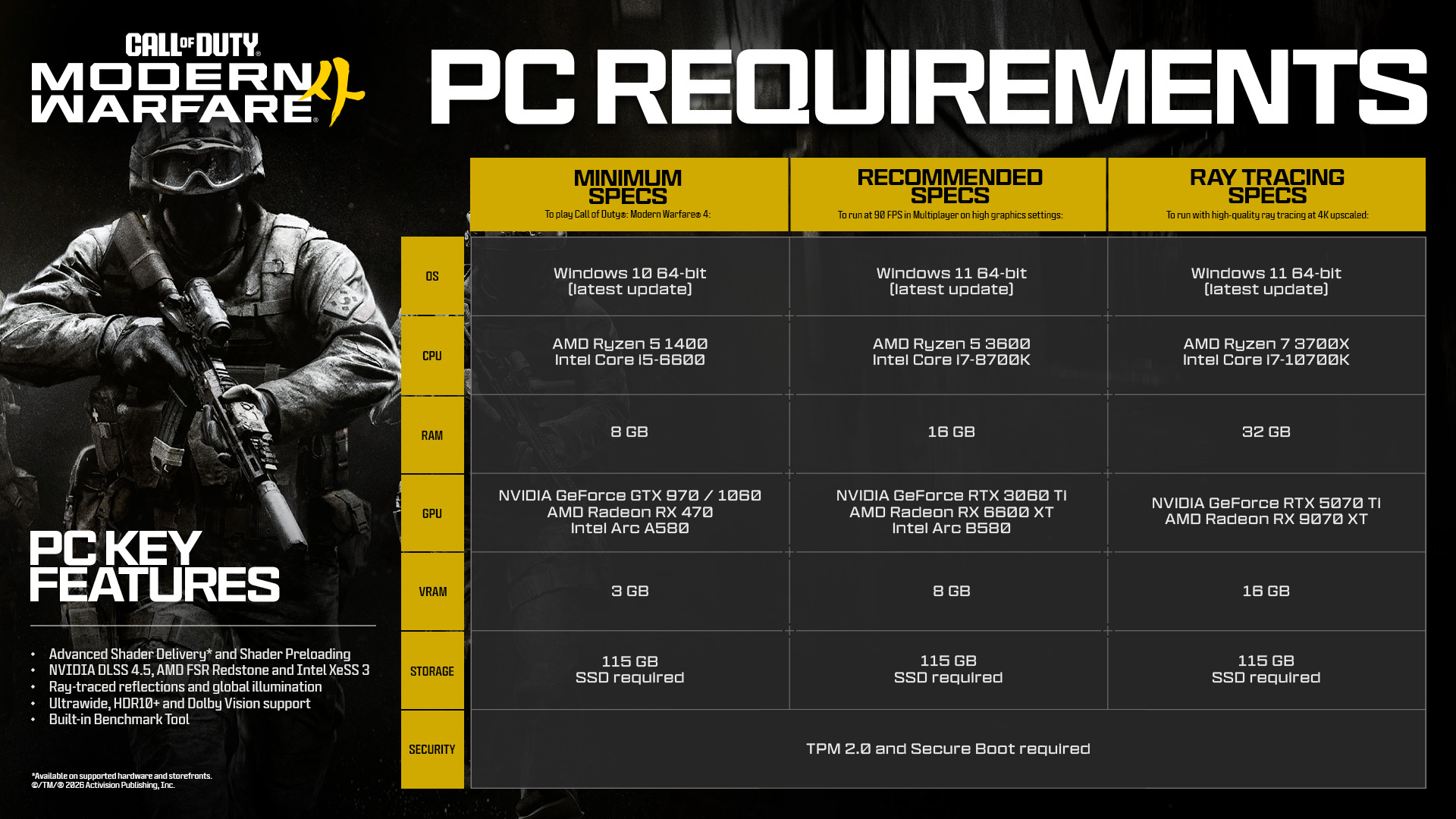
Low-End PC: Maximum FPS
Use 1080p, Low graphics for expensive effects, ray tracing Off, VRS On, and Normal or Low textures depending on your available VRAM. If GPU usage stays near 100% and FPS is still too low, use DLSS, FSR, or XeSS and work down from Quality toward Balanced or Performance.Do not immediately use Ultra Performance at 1080p. The internal render resolution becomes extremely low and can make distant enemy visibility much worse.
Mid-Range PC: Best Competitive Balance
For GPUs around the official Recommended tier, 1080p or 1440p with mostly Low competitive effects and Normal textures is the best starting point. Use Quality upscaling only if you need it to reach your monitor's target frame rate.Activision's launch Recommended specification includes an RTX 3060 Ti, RX 6600 XT, or Intel Arc B580 with 8 GB of VRAM and targets 90 FPS in Multiplayer at High graphics settings. Competitive settings should therefore provide extra performance headroom compared with the official High preset.
High-End PC: 1440p 240Hz and Above
High-end PCs do not need to make the entire game ugly. Keep textures High if VRAM allows it, use High anisotropic filtering, and run native 1440p or a high-quality reconstruction mode.Still disable ray tracing, motion blur, depth of field, unnecessary reflections, and heavy shadows. At high refresh rates, the goal shifts from simply reaching playable FPS to keeping 1% lows and frame times stable during gunfights.
How to Test Your MW4 Settings
Do not optimize MW4 by standing in an empty menu or looking at one quiet corner of a map. Test settings during actual Multiplayer conditions where explosions, players, effects, and rapid camera movement put pressure on the system.
- Enable the in-game FPS and latency telemetry.
- Use the same map or similar area when comparing settings.
- Watch GPU time, CPU time, and frame-time stability where possible.
- Change one or two settings at a time.
- Test during real gunfights rather than only in quiet areas.
- Prioritize stable FPS over the highest number you see for one second.
If changing graphics settings barely affects FPS while GPU usage remains low, you may be CPU-limited. Lowering graphics even further will not solve a CPU bottleneck. If GPU usage sits close to 100%, reducing GPU-heavy settings or using an upscaler should have a larger effect.
If you are also deciding which weapons to use with your optimized setup, check our best MW4 guns and loadouts and our complete MW4 weapons guide.
Best MW4 PC Settings FAQ
What are the best MW4 settings for FPS?
Use Fullscreen Exclusive, your monitor's highest refresh rate, V-Sync Off, ray tracing Off, low shadows and volumetrics, motion blur Off, depth of field Off, and a 70–80% VRAM Scale Target. Use an upscaler only when your GPU needs additional performance.What is the best FOV for MW4?
Start at approximately 105 FOV. A range of 100–110 provides a good balance between peripheral awareness and keeping enemies large enough to track. PC players should also test Enhanced FOV, which increases peripheral visibility while having less effect on the center of the image.Should Enhanced FOV be on in MW4?
Yes, we recommend starting with Enhanced FOV On. It is designed to provide extra peripheral awareness without shrinking the center view as much as simply increasing normal FOV.Should NVIDIA Reflex be On or On + Boost?
Use On + Boost as the competitive starting point on supported NVIDIA GPUs. Standard On is a good alternative if Boost causes unwanted heat, power use, or inconsistent performance on your system.Should I use DLSS in MW4?
Use DLSS if you are GPU-limited and need additional FPS. Quality mode is a good starting point at 1440p and 4K. At 1080p, native rendering or a high-quality reconstruction mode usually gives clearer enemy visibility than aggressive Performance or Ultra Performance modes.Should I use Frame Generation in MW4?
We recommend Frame Generation Off for competitive Multiplayer. It can make gameplay look smoother and raise displayed FPS, but generated frames do not provide the same input-latency benefit as increasing the game's real rendered frame rate.Should V-Sync be on or off in MW4?
Use V-Sync Off for competitive gameplay if your goal is the lowest possible latency. Players using G-Sync or FreeSync can combine variable refresh with an appropriate FPS cap if they want to reduce tearing.Why does MW4 look blurry on PC?
Check Render Resolution, Dynamic Resolution, your upscaling preset, motion blur, depth of field, and sharpness. Very aggressive DLSS, FSR, or XeSS Performance modes can also reduce distant image clarity, especially at 1080p.Why is MW4 stuttering?
Stuttering can come from shader compilation, VRAM pressure, GPU drivers, recording software, background applications, or unstable graphics settings. For launch, use Advanced Shader Delivery where supported, install the recommended driver, leave VRAM headroom, and avoid Beta-era config tweaks until they are confirmed to work with the final build.Is Fullscreen Exclusive better than Borderless in MW4?
Fullscreen Exclusive is our competitive starting recommendation. However, modern Windows and graphics drivers have reduced the difference between the two modes, so use whichever produces the best frame-time stability on your system.Does higher FOV reduce FPS in MW4?
It can. A wider field of view means the game may need to render more of the scene at once. The performance difference is usually smaller than major graphics settings such as ray tracing, shadows, or volumetric effects, but it can still matter on weaker CPUs and GPUs.Final MW4 PC Settings Recommendation
For competitive MW4, focus on clarity, stable frame times, and real rendered FPS. Keep your native resolution where possible, remove blur and depth-of-field effects, disable ray tracing and Frame Generation, use Reflex, and lower expensive lighting settings before sacrificing texture clarity.The most interesting new PC option is Enhanced FOV. Starting around 105 base FOV with Enhanced FOV enabled should provide a strong mix of central target visibility and peripheral awareness, but we will retest it along with DLSS 4.5, FSR Redstone, XeSS 3, and the final graphics presets when Modern Warfare 4 launches on October 23.
Top 50
Get your MW4 rewards now.