Modern Warfare 4 can feel harder to control than it should if your sensitivity is too high, aim settings are inconsistent, or your console is not using the right display mode. The best MW4 console settings help you track enemies, react faster, and see clearly without sacrificing control. This guide covers the recommended PS5, PS5 Pro, Xbox Series X, and Xbox Series S setup, based on the MW4 Beta and practical competitive starting points.
Best MW4 Console Settings at a Glance
If you just want a strong competitive setup, use the table below. These are recommended starting values, not official settings or a guarantee that every player will aim better with the same sensitivity.| Setting | Recommended Starting Point |
|---|---|
| Horizontal Stick Sensitivity | 1.6–1.8 (start at 1.65) |
| Vertical Stick Sensitivity | 1.6–1.8 (match horizontal) |
| ADS Sensitivity Multiplier | 0.90–1.00 (start at 0.95) |
| Aim Response Curve | Dynamic |
| Target Aim Assist | On |
| Left and Right Stick Minimum Deadzones | 3–5 to start; use the lowest drift-free value |
| Stick Maximum Deadzones | 95–99 as a starting range |
| Button Layout | Tactical, or Default with paddles |
| Controller Vibration | Off |
| PS5 Trigger Effects | Off for competitive play |
| Field of View | 105 (test 100–110) |
| ADS Field of View | Affected; Independent is an alternative |
| Camera Movement | Lowest available |
| World / Weapon Motion Blur | Off where available |
| 120 Hz Video Output | Enabled with a compatible screen |
| Variable Refresh Rate (VRR) | On with compatible hardware |
The same core controller recommendations work on both PlayStation and Xbox. The main differences are PS5 trigger effects, system video menus, and how each console handles performance. For PC-only options such as advanced upscaling and Enhanced FOV, use our Best MW4 PC Settings guide instead.
Best MW4 Controller Settings for PS5 and Xbox
Your controller settings have a bigger effect on aiming consistency than almost any visual option. Start with sensitivity, then adjust ADS control and deadzones before changing movement binds.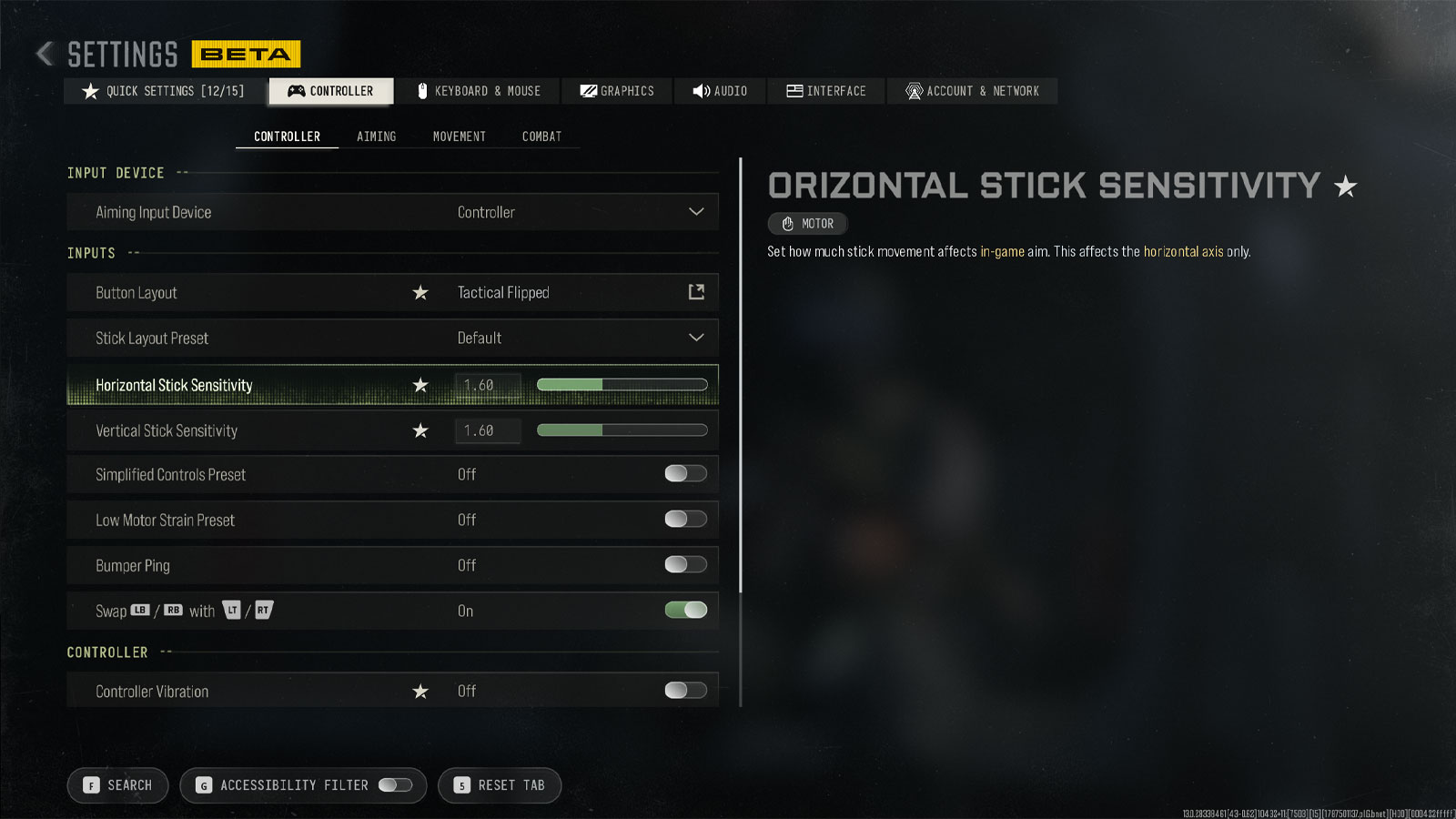
Best MW4 Controller Sensitivity
MW4's Beta used the newer decimal-based stick sensitivity scale. Do not copy old Call of Duty recommendations such as 6-6 or 8-8 directly into this menu, because they do not represent the same scale.A good starting point is 1.65 horizontal and 1.65 vertical. If turning feels slow when checking corners, move toward 1.75 or 1.8. If you keep moving past enemies while aiming, lower your sensitivity before you increase it again.
An SMG player who rushes buildings may prefer a slightly faster turn speed. An assault-rifle player who fights across longer lanes may find a slightly lower value easier to control. There is no need to copy a professional player's exact numbers if your own tracking becomes worse.
Best ADS Sensitivity and Aim Response Curve
Start with an ADS Sensitivity Multiplier of 0.95. This slightly slows your aim while looking down sights and can help you stay on target during recoil corrections. If ADS feels too slow, return to 1.00; if you overshoot small targets, try 0.90.For the response curve, Dynamic is a strong competitive starting choice because small stick corrections can feel controlled without making larger turns sluggish. Standard is also valid, especially if you prefer a more familiar or predictable response. Neither curve removes recoil or strengthens aim assist by itself.
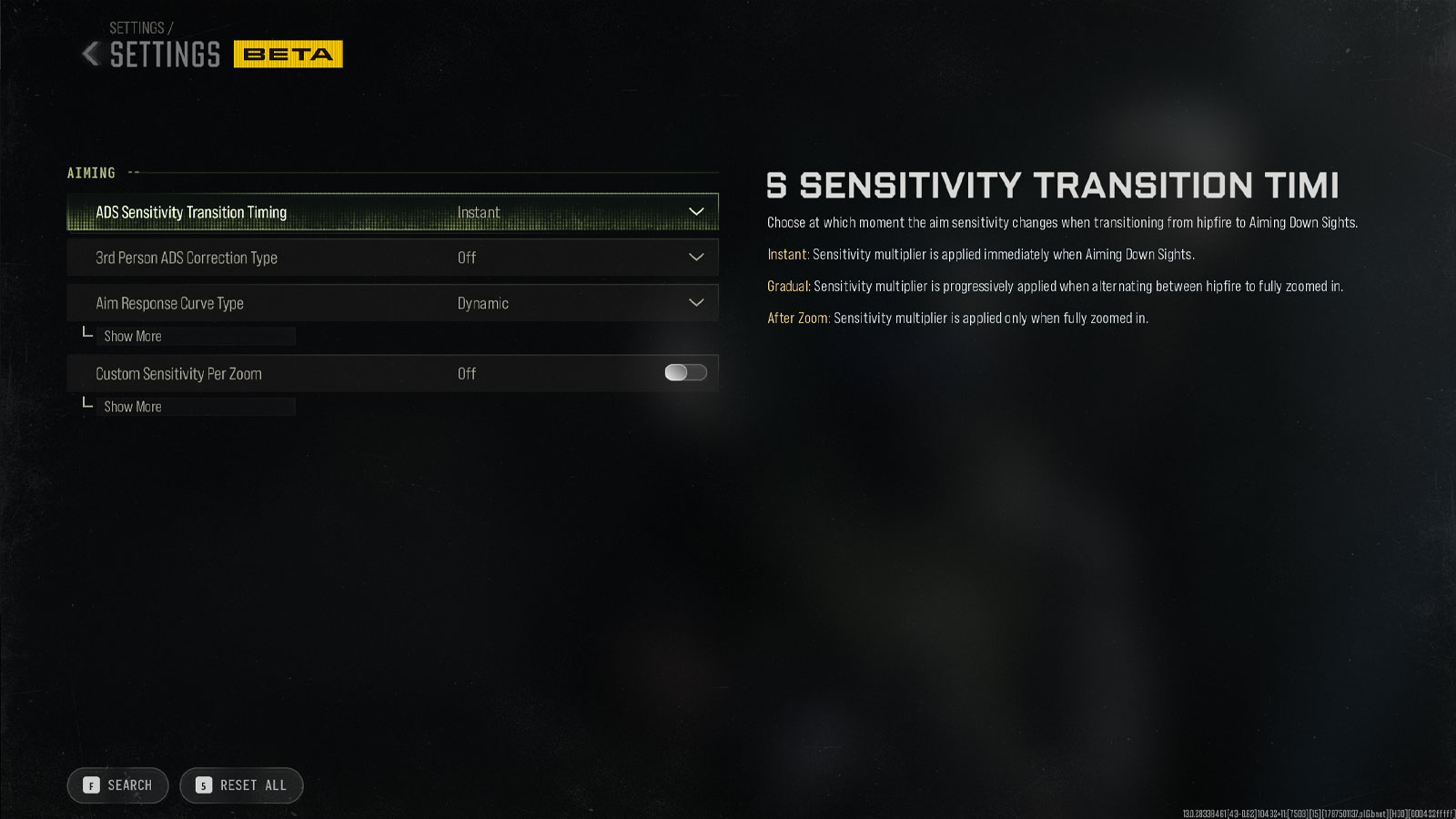
If you use different optics, start by leaving individual zoom multipliers at their defaults. Adjust low-zoom sensitivity first, because it matters most for standard Multiplayer fights. A value around 0.85–0.95 can work for low-zoom optics, but avoid changing every scope multiplier before you have tested the main ADS setting.
Best MW4 Controller Deadzone Settings
A deadzone is the amount of stick movement your game ignores. A minimum deadzone that is too high can make aiming feel unresponsive. One that is too low can cause stick drift, meaning the camera or character moves even when you are not touching the sticks.Start around 3–5 for both minimum deadzones and adjust each stick separately. For maximum deadzones, 95–99 is a reasonable first test, but leave the default if you do not understand how the option changes the point where full input is registered.
How to Find Your Best Deadzone
- Open the controller deadzone test or input visualization, if available.
- Release both sticks and watch for unwanted movement.
- Lower each minimum deadzone until drift appears, then raise it slightly.
- Check that the left stick does not walk on its own and the right stick does not move the camera.
- Repeat after changing controllers or replacing worn thumbsticks.
Trigger deadzones can usually stay at their defaults unless you notice delayed firing or accidental trigger inputs. Use small changes and test them in the Firing Range instead of copying zero-deadzone settings blindly.
Best Button Layout, Vibration, and Trigger Settings
Tactical is a useful option on a normal controller because it moves crouch and slide-related inputs to a more accessible button. Default is still a good choice if you already have a controller with rear paddles or have years of muscle memory with the standard layout.For competitive play, turn controller vibration Off. PS5 players can also disable adaptive trigger effects to avoid extra resistance when firing or aiming. Xbox players do not need to look for a PS5-specific trigger-effect option.
Best MW4 Aim Assist Settings
For most controller players, Target Aim Assist should be On. It helps with target tracking within the game's rules, but it does not automatically aim for you. Your right-stick control, movement, weapon recoil, and choice of engagement still matter.If your version of the menu includes a separate ADS Aim Assist toggle, keep it enabled as a starting point. Do not confuse these options with Aim Response Curve: one affects assistance around targets, while the other changes how your stick input translates into camera movement.
How to Make Aim Assist Feel More Consistent
- Keep your sensitivity at a level where you can follow a moving opponent without swinging past them.
- Use the lowest right-stick deadzone that does not cause drift.
- Make small corrections while tracking instead of repeatedly snapping the stick left and right.
- Test the same weapon and sight while changing only one aim setting at a time.
- Practice tracking enemies at both close and medium range.
Did MW4 Change Aim Assist?
Yes. Infinity Ward reduced aim-assist impact during the second Beta weekend and said that tuning was not yet final. Its official MW4 Beta patch notes also confirmed that further aim-assist changes were planned ahead of launch.This is why you should treat any exact aim-assist strength comparison from the Beta as temporary. The sensible long-term setup is to use the available assistance setting, learn a controllable sensitivity, and retest tracking after major gameplay updates.
Best MW4 Movement and Gameplay Settings
Good movement settings help you sprint, slide, aim, and reload without extra button presses. They should also prevent automatic actions from interrupting a gunfight.Sprint and Tactical Sprint Settings
For regular sprinting, try Sprint Assist if you like moving aggressively, or turn it off if you often stop at corners to pre-aim. Toggle-style sprint controls can also reduce repeated stick clicks during longer sessions.There is one important MW4-specific detail: Tactical Sprint was moved to the Blood Rush perk during the later Beta. That means recommendations for automatic Tactical Sprint may not apply unless the mechanic is available with your current loadout. Check the live game's perk and movement menus before copying older MW4 Beta sprint tutorials.
Best Slide, Dive, and Mantle Settings
For a fast, controlled setup, try Tap to Slide or Hybrid if those choices appear in your movement menu. Turn off unwanted automatic mantle actions if your character keeps climbing when you meant to fight or move beside cover. Test Slide Maintains Sprint both ways to see which feels more natural with your movement rhythm.Best Interact, Reload, and Combat Settings
Use Hold for Aim Down Sight if you want immediate control over when you enter and leave ADS. Tap to Reload is a straightforward starting option for normal Multiplayer. In Warzone or other loot-heavy modes, a contextual interact option may be more convenient, so test whether picking up items interferes with reloading.For armor plates, an Apply All behavior can simplify repeated plating when the mode supports armor. Leave automatic door interactions and similar assists off if they often trigger actions you did not intend.
Best MW4 FOV and Camera Settings
FOV, or field of view, changes how much of the game world you can see at once. A wider FOV gives you better peripheral awareness, but it also makes enemies near the center of the screen look smaller. The best value depends on your screen size, seating distance, and the range at which you usually fight.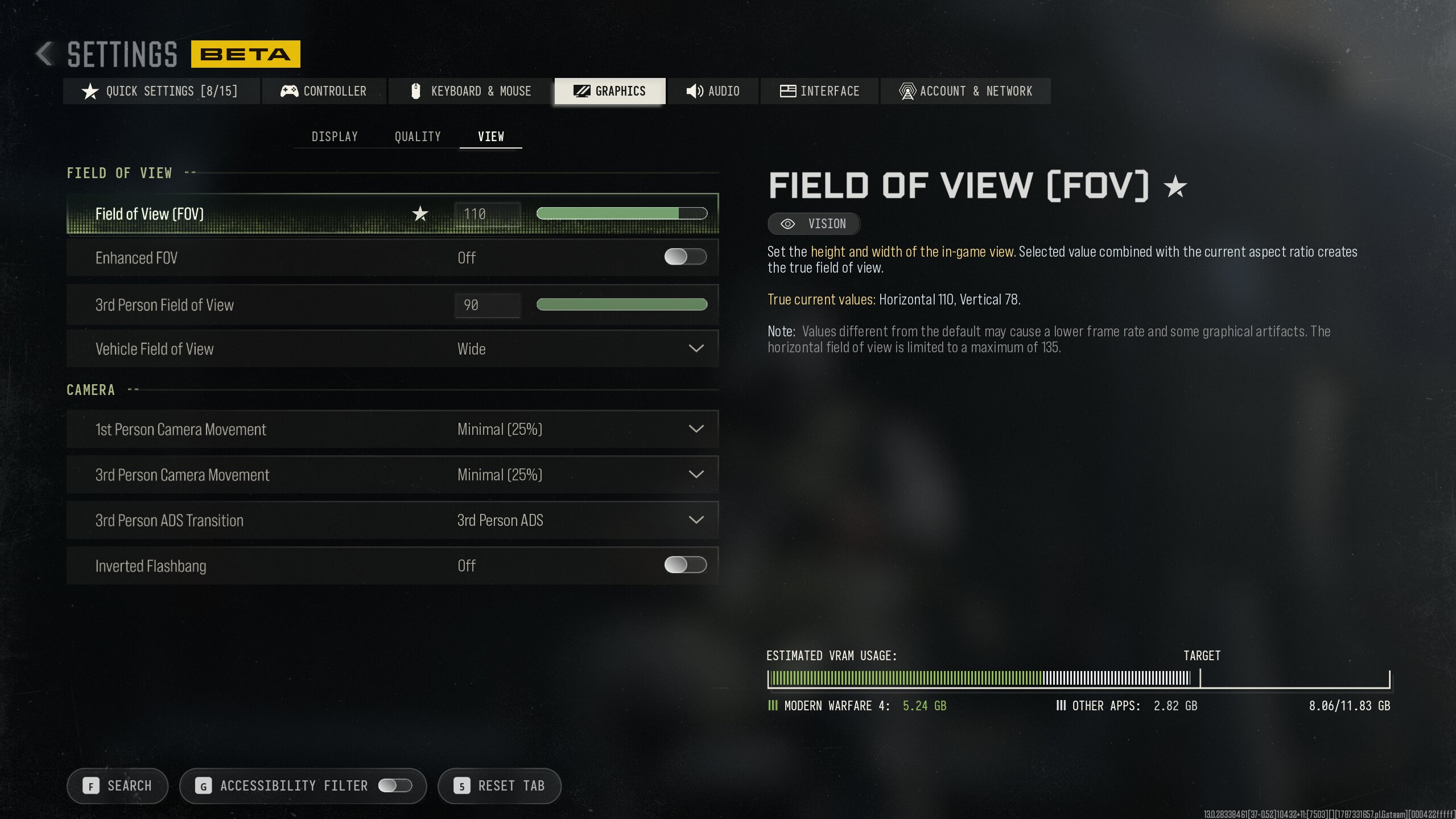
What Is the Best FOV for MW4 on Console?
We recommend starting at 105 FOV, then testing the 100–110 range. At 100, distant enemies appear a little larger and may be easier to identify. At 110, you see more on the sides, which can help in tight spaces and fast flanking routes.Going all the way to 120 is not automatically better. On a TV viewed from a couch, small targets can become difficult to see. Players using a close monitor may find a wider FOV more comfortable, but should still compare actual gunfights instead of choosing the biggest number.
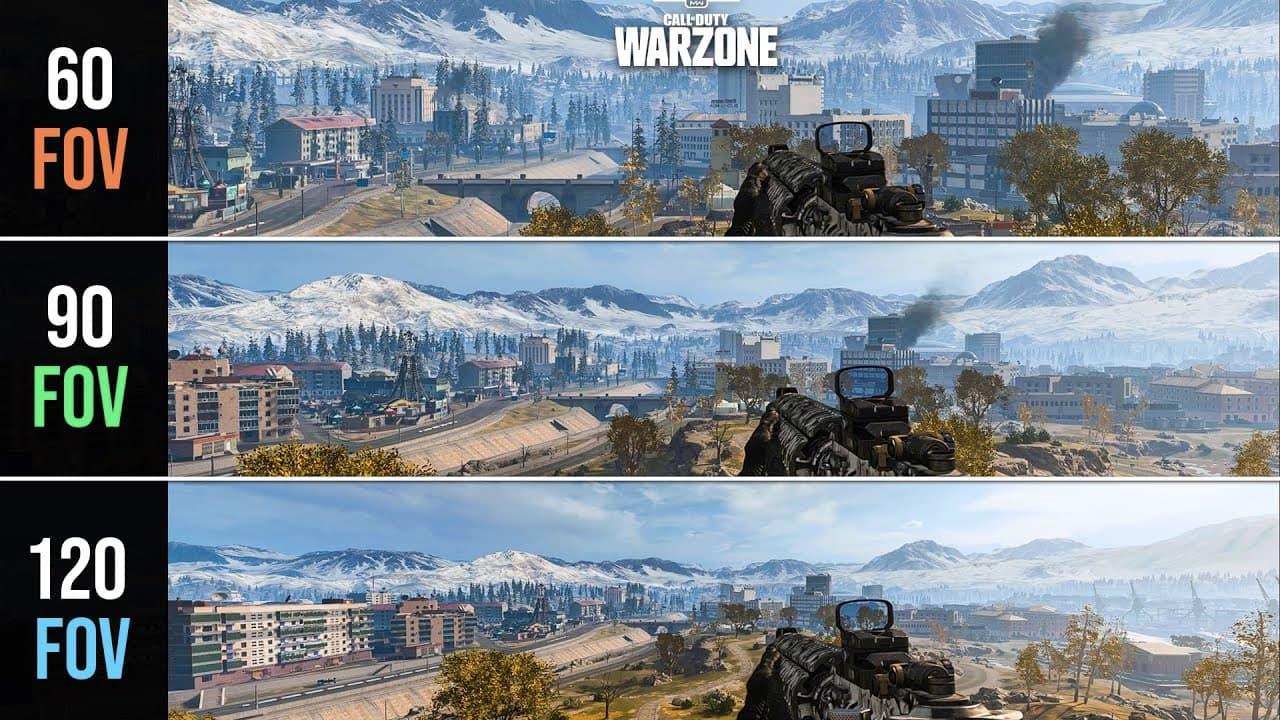
Affected vs Independent ADS FOV
Affected ADS FOV generally preserves more of your wider view while aiming, making transitions feel consistent and helping you keep sight of nearby threats. Independent creates a more noticeable zoom effect and can make distant targets easier to see.Choose Affected if you mainly use ARs and SMGs and value peripheral awareness. Try Independent if you struggle to see enemies at longer ranges. Infinity Ward restored the choice between these settings during the Beta, so both deserve testing.
Best Camera Movement Settings
Set first-person camera movement to the lowest available value if you want to reduce unnecessary screen motion. That will not remove weapon recoil, but it can make it easier to keep track of enemies when sprinting, sliding, or taking damage.MW4's Enhanced FOV is PC-only. Console players should use the normal FOV slider rather than looking for a missing toggle. Activision explains the difference in its MW4 gameplay systems overview.
Best MW4 Console Graphics Settings for FPS and Visibility
On console, you cannot change every individual graphics setting the way you can on PC. Focus on the options that improve visibility and the display mode your hardware can actually support.| Graphics Setting | Recommended | Why |
|---|---|---|
| Performance / 120 Hz Mode | Prioritize for competitive play | Can reduce input delay when supported |
| World Motion Blur | Off, if available | Keeps moving scenery clearer |
| Weapon Motion Blur | Off, if available | Reduces blur during weapon motion |
| Depth of Field | Off or reduced, if available | Preserves a clearer overall picture |
| Film Grain | 0, if available | Removes added image noise |
| HDR | Calibrate for your display | Helps prevent crushed shadows or blown highlights |
| TV Game Mode / ALLM | On, if supported | Can reduce TV processing latency |
Not every option will appear on every console or build. If you cannot find a PC-style setting such as ray tracing quality, DLSS, or render scale, that is normal. Console games often manage these automatically.
Performance Mode vs Quality Mode
If MW4 or your system offers a performance-oriented mode, it is usually the better place to start for competitive Multiplayer. A higher refresh-rate target can improve responsiveness, but it may also reduce internal rendering resolution or visual detail.On Xbox Series S, those image-quality trade-offs can be more noticeable than on more powerful consoles. PS5 Pro owners should not assume that every graphics feature is automatically faster: use the actual MW4 mode choices, if present, and judge clarity and frame-rate stability in live matches.
Best Brightness and HDR Settings
Use the game's brightness calibration rather than copying a fixed number from another person's TV. Set dark areas so you can still distinguish enemy movement, without raising black levels so much that the whole image looks washed out.For HDR, run your console's HDR setup and check that bright effects do not erase important detail. Turn on the TV's Game Mode or Auto Low Latency Mode when available. These adjustments are often more useful than pushing every display setting to its maximum.
Does Higher FOV Lower FPS on Console?
A wider view can increase the amount of the scene that needs to be rendered, but the performance effect depends on the engine and console mode. Do not assume that changing from 105 to 110 FOV will produce a measurable drop in every match. Use target visibility and smoothness as your main criteria.How to Enable 120 FPS in MW4 on PS5 and Xbox
A 120 Hz display updates up to twice as often as a 60 Hz display. That can make aiming and camera movement appear smoother, provided the game supports a high-frame-rate mode and the console produces enough frames. 120 Hz output does not guarantee a locked 120 FPS.How to Enable 120 Hz on PS5 and PS5 Pro
- Open Settings > Screen and Video > Video Output.
- Set 120 Hz Output to Automatic.
- Enable VRR if your TV or monitor supports it.
- Choose Performance Mode in console game presets if you prefer higher frame rates and the game honors that preset.
- Launch MW4 and select a high-frame-rate or performance option if one is offered in the game.
A compatible display and HDMI connection are essential. For 4K at 120 Hz, use the appropriate HDMI 2.1-capable port and a suitable Ultra High Speed HDMI cable. PlayStation's official PS5 video-output instructions show where to check resolution, 120 Hz, and VRR support.
How to Enable 120 Hz on Xbox Series X and Series S
- Press the Xbox button and open Settings > General > TV & Display Options.
- Set Refresh rate to 120 Hz if the choice is available.
- Open 4K TV details to check which formats your display supports.
- Enable Variable Refresh Rate in Video modes if supported.
- Open MW4 and choose its higher-frame-rate mode if the game exposes that setting.
The Series X and Series S can both output 120 Hz to suitable displays, but the actual MW4 frame rate and resolution can differ. If 120 Hz is unavailable, check your display's specifications, the selected HDMI port, and whether it supports 120 Hz at your chosen resolution.
60 FPS vs 120 FPS: Which Is Better for MW4?
For competitive Multiplayer, start with 120 Hz when your screen and game support it. The smoother presentation can make tracking and reacting feel easier. However, a stable 60 FPS mode may look noticeably sharper, especially on a larger 4K TV or a console that makes a substantial resolution compromise to target 120 FPS.Why Is MW4 Stuck at 60 FPS?
- Your TV or monitor might only support 60 Hz at the current resolution.
- The console might be connected to a 60 Hz-only HDMI port.
- The console's 120 Hz output option may be disabled.
- A receiver, capture device, or HDMI switch may be limiting the signal.
- The game may be running in a quality-focused mode or a mode that does not support 120 FPS.
Do not mistake the display reporting a 120 Hz signal for proof that MW4 is rendering 120 unique frames every second. Check the game's performance mode and your display's frame-rate information, if available.
Best MW4 Audio Settings to Hear Footsteps
Audio settings are less about raw volume and more about separating useful cues from distractions. Start with a headphone-focused mix if MW4 offers one, then adjust the balance until footsteps, reloads, doors, and nearby gunfire are easy to identify.Recommended Competitive Audio Setup
- Audio Mix: Headphones or the closest available headphone-focused preset.
- Sound Effects Volume: High enough to hear movement without uncomfortable loudness.
- Music Volume: Low or Off during Multiplayer.
- Dialogue Volume: Moderate, so callouts remain audible without overpowering effects.
- Voice Chat: Balance with game audio so teammates do not mask footsteps.
- Spatial Audio: Compare your platform's spatial mode with normal stereo and keep the one that gives better directional cues.
More bass is not automatically better. Heavy explosions and low-frequency effects can cover quieter details. Test the mix in actual matches, and remember that Infinity Ward has continued working on Warzone footstep audio after the Beta.
How to Test and Fine-Tune Your MW4 Console Settings
Instead of changing every setting at once, spend five minutes checking what actually improves your aim. Use the Firing Range for repeatable tests and the Mobility Course or a private match for movement settings when those modes are available.Five-Minute Controller Setup Test
- Minute 1: Set horizontal and vertical sensitivity to 1.65 and check quick turns between targets.
- Minute 2: Track a moving target while ADS. Test 0.95, then 0.90 or 1.00 if needed.
- Minute 3: Check minimum deadzones for drift and unwanted camera movement.
- Minute 4: Compare 100, 105, and 110 FOV while looking at the same distant target.
- Minute 5: Test slide, sprint, reload, and target tracking during normal movement.
Once you find settings that feel consistent, keep them for several matches. Changing sensitivity after every lost gunfight makes it difficult to build muscle memory. If you want to test your setup with stronger builds, our MW4 Beta best guns guide covers the weapons that performed well during the test period.
MW4 Console Settings FAQ
What are the best MW4 controller settings?
Start with 1.65 horizontal and vertical sensitivity, 0.95 ADS sensitivity, a Dynamic response curve, aim assist On, and low deadzones without drift. Adjust these settings gradually to match your controller and playstyle.What is the best MW4 sensitivity on PS5 and Xbox?
The 1.6–1.8 range is a good starting point on MW4's Beta sensitivity scale. A value near 1.65 balances turning speed with control for many players, but it is not a universal optimum.Is Dynamic or Standard better in MW4?
Dynamic is a strong starting point for competitive controller play, while Standard may feel easier to control if you prefer a simpler response. Choose the curve that gives you more consistent tracking, not the one with the more popular name.Should MW4 aim assist be on?
Yes, for most controller players. Keep Target Aim Assist enabled unless you have a specific reason to train without it. Aim assist tuning can change between builds, so retest after major updates.What is the best FOV for MW4 on console?
Start at 105 FOV. Try 100 if distant targets look too small, or 110 if you value additional peripheral awareness. The best choice depends partly on your screen size and viewing distance.Can MW4 run at 120 FPS on PS5 and Xbox?
MW4's Beta included higher-frame-rate console modes, but actual frame rate depends on hardware, resolution, and gameplay load. Enable 120 Hz on a compatible display and use the game's performance option where supported. A 120 Hz signal does not mean 120 FPS is guaranteed.Should I turn off controller vibration?
For a competitive setup, yes. Disabling vibration removes extra controller feedback that can distract from small aim corrections. On PS5, you can also switch off adaptive trigger effects.What deadzone settings should I use in MW4?
Use the lowest minimum deadzones that do not cause drift, often around 3–5 as a first test. Worn controllers may need higher values. Do not use zero simply because another player recommends it.Final MW4 Console Settings Recommendation
For most PS5 and Xbox players, the best MW4 setup starts with controlled sensitivity, Dynamic response, aim assist On, low drift-free deadzones, and about 105 FOV. Disable unnecessary blur and vibration, keep your TV in Game Mode, and enable 120 Hz when your display and game support it.The goal is consistency, not copying the highest sensitivity or widest FOV. Build a setup you can control, test it in real matches, and change only the settings that solve a specific problem.
BOOSTING FACTORY
Got Your MW4 Settings Dialed In?
Unlock more attachments and build options without spending your sessions grinding weapon levels.
Explore MW4 Weapon Leveling →
Top 50
Get your MW4 rewards now.