WARDOGS can look smooth at spawn and then lose a lot of performance once vehicles, explosions, buildings and dozens of players enter the same fight. The best settings are not simply "everything on Potato." You want to remove expensive effects while keeping the detail that helps you see enemies at long range.
This guide covers the best WARDOGS settings for max FPS, clear visibility and low input lag, including presets for low-end, balanced and high-end PCs.
Best WARDOGS Settings at a Glance
If you just want a strong starting point, use the settings below. This profile is built around competitive visibility and stable performance rather than maximum graphical quality.The key idea is simple: keep View Distance high, maintain enough Mesh Detail to read the environment clearly, and reduce expensive lighting, shadows and visual effects.
This is a balanced competitive profile, not a maximum-FPS-at-any-cost preset. Lower-end systems can reduce several options further, which we cover below.
WARDOGS PC Requirements and Expected Performance
Before changing twenty settings, make sure your target FPS is realistic for your hardware.BULKHEAD's official PC requirements give specific performance targets rather than only listing components.
Both official tiers list 16 GB RAM. The important detail is that even the minimum 1080p target assumes upscaling, so using DLSS, FSR or another supported upscaler on weaker hardware is completely reasonable.
Also remember that these are performance targets, not guarantees. A quiet section of the map and a packed Control Zone full of destruction can put very different loads on the same PC.
Best WARDOGS Display Settings
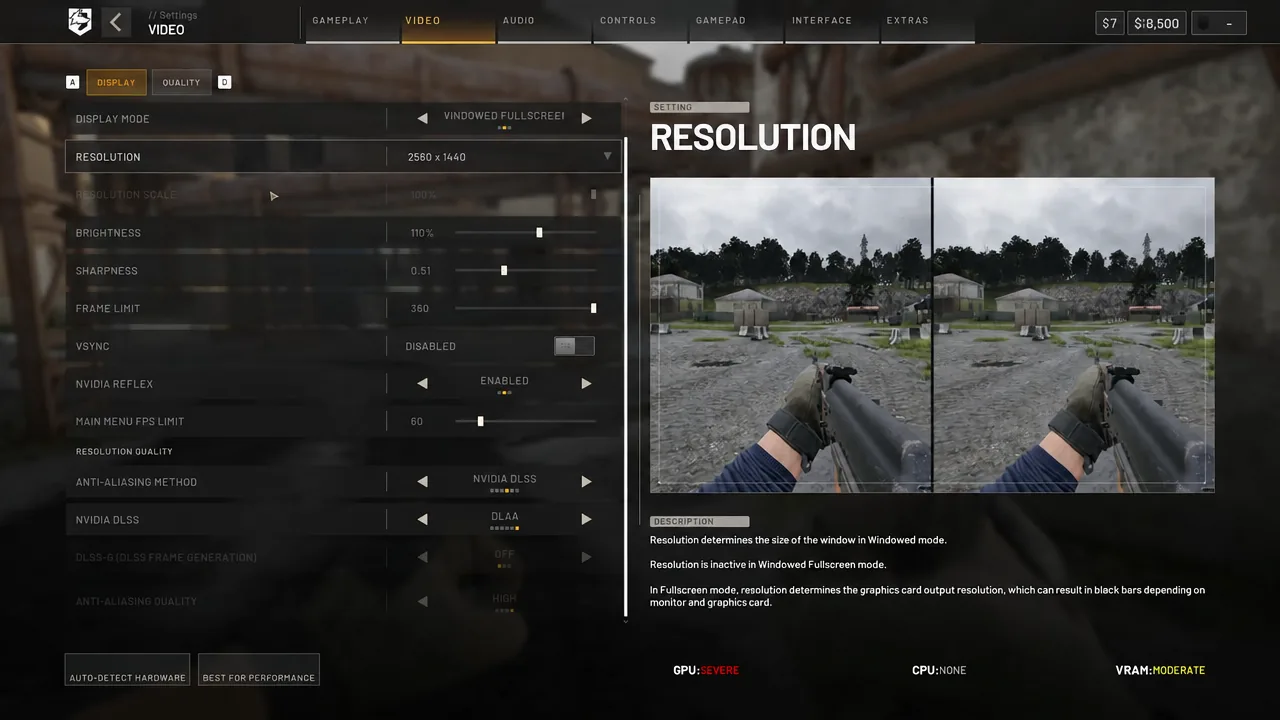
Start with the Display tab before changing graphics quality. These settings control how frames reach your screen and can affect both clarity and input latency.Display Mode: Fullscreen or Windowed Fullscreen
Both are reasonable choices. Fullscreen is the first option to test if you are focused entirely on performance and latency, while Windowed Fullscreen is more convenient if you frequently use another monitor or alt-tab.If both feel identical on your PC, use whichever is more convenient.
Resolution: Native
Keep WARDOGS at your monitor's native resolution when possible. Long-range engagements are common, and dropping resolution makes small targets harder to identify.If your GPU cannot maintain your desired FPS, use DLSS or FSR before reducing the monitor resolution itself.
Frame Limit
Do not automatically leave the frame rate uncapped. A stable frame time is often more useful than a larger number that swings constantly.A 144 Hz monitor can start at a 144 FPS cap. If your system only maintains around 100 FPS during heavy combat, however, a stable cap closer to what it can actually sustain may feel smoother.
VSync: Disabled
For the lowest input latency, keep in-game VSync disabled. Players using G-Sync or FreeSync can handle synchronization through their wider display setup if needed.NVIDIA Reflex: Enabled
If you have a supported NVIDIA GPU, enable Reflex. It is designed to reduce latency through the rendering pipeline, which is useful in a shooter where a few delayed frames can affect how responsive aiming feels.Best WARDOGS Graphics Settings for Max FPS
Set Overall Quality to Custom so you can tune the expensive options without sacrificing every visual setting.The biggest mistake is using a blanket Potato preset and assuming every reduction is useful. Some settings mainly add visual effects, while others help you read terrain and targets.
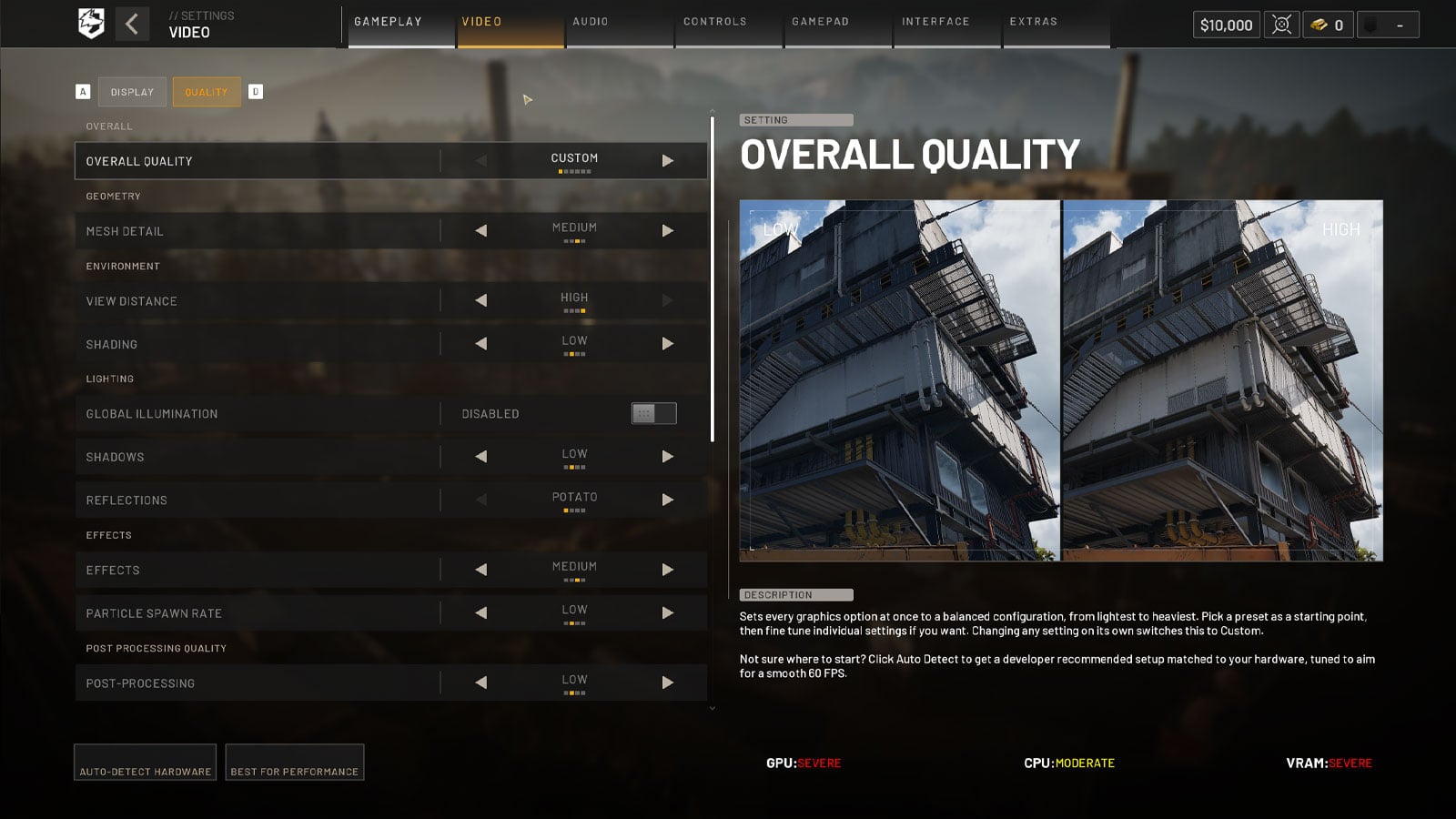
Mesh Detail: Medium or High
Keep Mesh Detail at least Medium. Dropping geometry too far can make distant environments harder to read, while the performance gained may not justify the visibility tradeoff.View Distance: High
This is one of the settings we would protect for competitive play. WARDOGS regularly creates long sightlines across roads, fields and large objective areas.If you are desperately short on performance, Medium is a reasonable fallback. Reduce lighting and effects first.
Shading: Low or Medium
Low gives additional headroom. Medium is a good upgrade if the game already runs comfortably after the heavier options are reduced.Global Illumination: Disabled
This is one of the first settings to cut. Advanced indirect lighting makes the scene look more natural, but it offers little competitive information compared with the GPU load it can add.Shadows: Low
Low is the best starting point. Higher shadow quality costs performance and can make dark areas visually busier.Potato can provide additional performance on very weak PCs, but Low keeps a more natural image while still removing much of the cost.
Reflections: Low
WARDOGS has water, vehicles and many reflective surfaces, but high-quality reflections provide little advantage during actual combat. Keep them Low.Effects: Medium
Medium maintains enough detail to understand explosions, fire and destruction without spending as much GPU time as the highest settings.Particle Spawn Rate: Low
Large fights can fill the screen with smoke, sparks and debris. Low reduces both rendering load and visual clutter.Post Processing: Low
Keep this Low. The extra visual polish is less useful than clarity in a competitive shooter.Motion Blur, Depth of Field, Lens Flare and Bloom: Disabled
Turn all four off.They can make screenshots more cinematic, but they do not help you identify a player moving between trees or track someone while turning quickly.
Textures: High If Your VRAM Allows It
Do not automatically destroy texture quality to gain FPS. Texture settings are heavily tied to available video memory.If your GPU has enough VRAM and the game is not reporting memory pressure, High textures can usually stay enabled. If you see hitching when entering new areas, lower Texture Streaming before reducing everything else.
Which WARDOGS Settings Affect FPS the Most?
If you do not want to change everything at once, start with the settings most likely to matter during heavy scenes.Do not start by lowering View Distance and textures. Those settings can have a much larger effect on how readable the battlefield looks than they do on your frame rate.
Best DLSS and Upscaling Settings in WARDOGS
Upscaling is one of the most powerful tools available when the GPU is the limiting factor. The goal is to use the least aggressive mode that lets you maintain your target FPS.DLAA or Native Rendering
Use native resolution or DLAA if your GPU already delivers enough performance. DLAA keeps the full-resolution image and focuses on anti-aliasing quality rather than increasing FPS.This is ideal for a high-end PC where distant image clarity is more valuable than another 20 or 30 frames.
DLSS / FSR Quality
Quality is our default recommendation.It is usually the best compromise between additional performance and the ability to identify small targets through foliage or across open terrain.
DLSS / FSR Balanced
Move to Balanced when Quality still leaves your GPU near maximum load or combat FPS falls below your target.At 1440p and especially 4K, Balanced can still look reasonable. At 1080p, the loss of fine detail is easier to notice.
Performance Mode
Use Performance only when necessary. It can provide significantly more headroom, but the lower internal resolution makes distant infantry, wires and vegetation softer.Should You Use Frame Generation?
Frame Generation can make motion look much smoother, but generated frames are not the same as increasing the game's underlying render rate.For competitive play, first make sure your normal FPS is already comfortable. Then test Frame Generation and decide whether the extra smoothness is worth the change in responsiveness on your system.
Best WARDOGS Settings for Visibility
FPS is only half of the problem. WARDOGS has long engagement distances, dense vegetation, dark interiors and large amounts of smoke and destruction.The settings below are worth keeping specifically because they help you see.
- View Distance: High to preserve distant battlefield detail.
- Mesh Detail: Medium or High so terrain and structures stay readable.
- Motion Blur: Off for clearer tracking while turning.
- Depth of Field: Off so the game does not intentionally blur parts of the scene.
- Lens Flare: Off to reduce bright visual obstruction.
- Bloom: Off for stronger contrast around bright surfaces.
- Shadows: Low to keep interiors easier to read without completely flattening the image.
Sharpness is more personal. If DLSS or FSR makes the game look too soft, increase it gradually rather than immediately using a much more demanding rendering mode.
Pay particular attention to vegetation and distant moving targets. A setting that looks great while standing still may look much worse once you start tracking a player through trees.
Best FOV Settings in WARDOGS
There is no single perfect FOV because screen size, resolution and viewing distance all matter. For most players, we recommend starting around 90 to 100 FOV, with 95 as a strong baseline.Higher FOV gives you more peripheral vision, which helps with awareness around buildings and when multiple enemies are pushing from different directions.
The downside is that everything in front of you becomes smaller. At extreme FOV values, a player several hundred meters away can become much harder to identify.
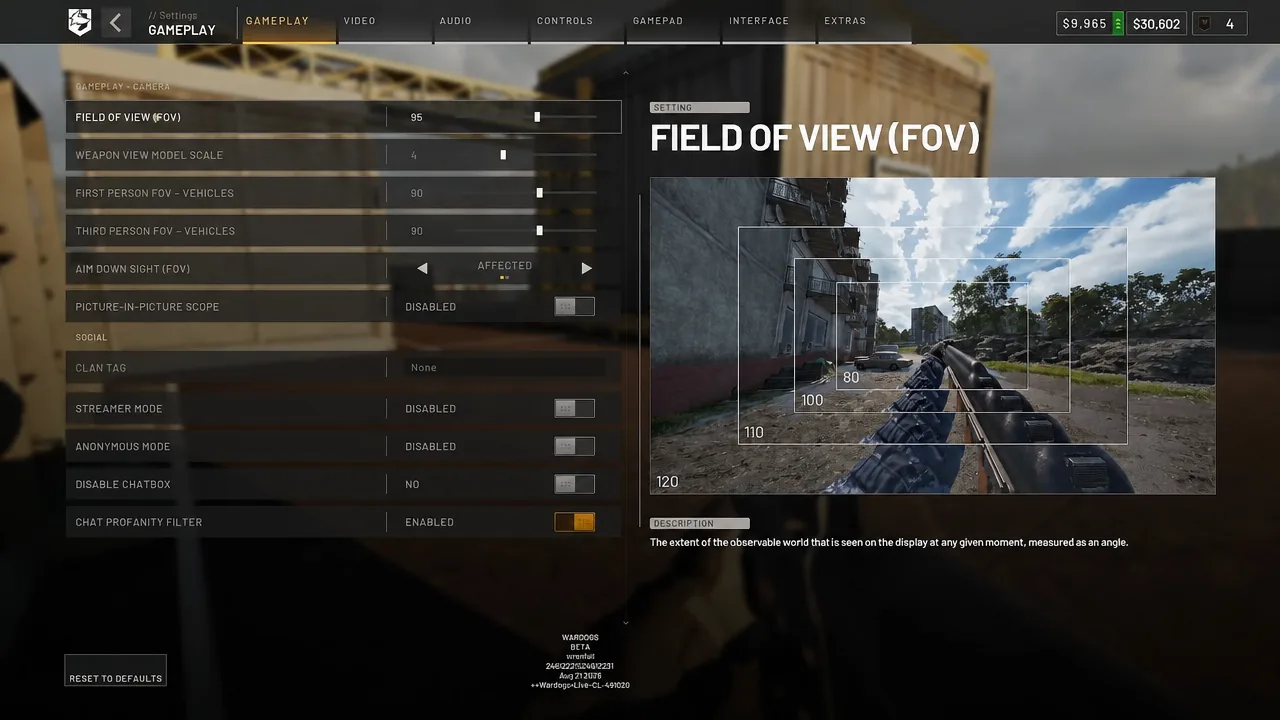
Do not copy a streamer's FOV blindly. Start around 95, play several matches and move it in small steps.
Best WARDOGS Settings for Low-End PCs
If you are close to the minimum requirements or playing on a weaker laptop, the priority changes from visual quality to stable combat performance.Use this as a maximum-FPS starting profile.
Do not immediately drop everything to Potato. Mesh Detail and View Distance are still worth protecting where possible because seeing the enemy is more important than making the FPS counter slightly larger.
Best Balanced WARDOGS Settings
For a typical modern gaming PC, the settings from our main table are the profile we would use.Keep View Distance High, Mesh Detail at Medium or High, textures as high as your VRAM comfortably supports, and Effects at Medium. Then cut Global Illumination, reduce Shadows and Reflections, and disable the cinematic post-processing options.
This gives you a much cleaner image than full Potato settings without spending performance on features that offer little benefit during a fight.
DLSS or FSR Quality is the best place to start if native resolution cannot hold your target FPS.
Best WARDOGS Settings for High-End PCs
A high-end GPU does not mean every setting should automatically be pushed to maximum.For competitive play, use your extra performance to improve image clarity instead.
- Use native resolution, DLAA or DLSS Quality.
- Keep Mesh Detail High.
- Keep View Distance High.
- Use High textures.
- Raise Shading or Effects if you have enough headroom.
- Keep Motion Blur, Depth of Field, Lens Flare and Bloom disabled.
- Consider leaving Global Illumination off if you value FPS more than visual lighting quality.
A stable 144 FPS with a clean image is generally more useful than turning on every graphical feature and dropping far below your monitor's refresh rate during the most important fights.
Why WARDOGS FPS Drops During Ground Combat
Do not judge your settings while standing alone at HQ or in an empty testing area.WARDOGS matches can combine large numbers of players with vehicles, structures, smoke, explosions and destruction inside the same area. A crowded ground fight is a completely different workload from flying over an empty section of the map.
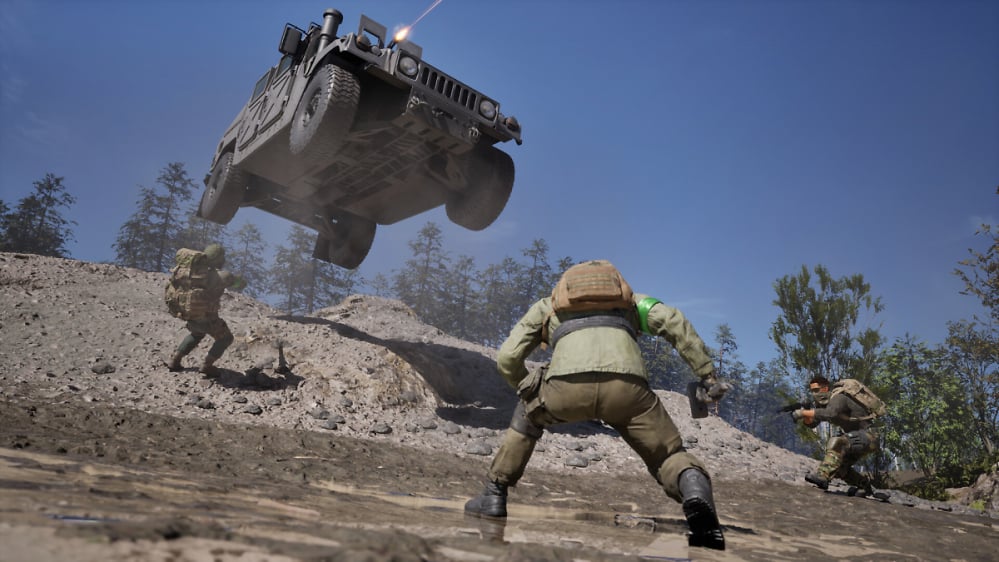
This is why some players see excellent FPS during quiet moments but much larger drops once they reach the main battle.
When testing a new preset, join a populated match and spend time around the active Control Zone. The FPS you get there matters much more than the number shown while staring at the sky at spawn.
Also watch the lowest FPS and frame-time consistency, not just your average. A system averaging 120 FPS while regularly dropping to 60 can feel worse than one holding a steady 90 or 100.
How to Fix Low FPS and Stuttering in WARDOGS
If the recommended settings are still not enough, change one thing at a time so you can identify the actual bottleneck.1. Update Your GPU Driver
Install a current stable driver for your NVIDIA, AMD or Intel GPU. New game releases and Early Access updates often receive driver-side fixes.2. Disable Global Illumination
Check this first. Do not assume a preset already turned it off.3. Lower Effects and Particle Spawn Rate
If FPS collapses during explosions and busy fights, these are logical settings to reduce before sacrificing View Distance.4. Move DLSS or FSR From Quality to Balanced
If your GPU remains close to full utilization, Balanced provides a larger performance increase than many individual quality sliders.5. Watch VRAM Usage
If FPS is acceptable but the game repeatedly hitches while moving into new areas, video memory may be the issue.Lower Texture Streaming first, followed by World and Character texture quality if necessary.
6. Test Whether You Are CPU-Limited
Reduce several GPU-heavy settings and compare FPS in the same busy fight.If performance barely changes, the graphics card may not be the main limitation. Large multiplayer battles can place substantial load elsewhere in the system.
7. Cap FPS at a Sustainable Number
If the game moves between 80 and 150 FPS constantly, try a cap your PC can maintain during actual combat.Consistent frame delivery can feel noticeably better than an uncapped average that looks impressive only when nothing is happening.
8. Test Settings in Real Matches
This is the most important step.Change one or two options, return to a busy fight and compare. Do not change ten settings at once because you will have no idea which one actually helped.
Finished Optimizing? Skip the WARDOGS XP Grind
Once your game is running smoothly, we can handle the progression grind. Choose Assault, Medic, Recon, Support, Driver or Pilot and set the exact level you want to reach.
GET WARDOGS LEVELING
WARDOGS Settings FAQ
What are the best WARDOGS settings for FPS?
Use native resolution with VSync disabled and NVIDIA Reflex enabled. Keep View Distance High, Mesh Detail at Medium or High, disable Global Illumination, set Shadows and Reflections to Low, and turn Motion Blur, Depth of Field, Lens Flare and Bloom off. Use DLSS or FSR Quality if you need additional FPS.Which WARDOGS settings increase FPS the most?
Start with Global Illumination, Shadows, Reflections and your upscaling mode. Effects and Particle Spawn Rate are also worth reducing if performance drops heavily during large fights.Should I use Potato settings in WARDOGS?
Only if your PC needs the extra performance. Full Potato settings can reduce visual detail that is useful for spotting enemies. A mixed Custom preset is usually a better starting point.Should I use DLSS in WARDOGS?
Yes, if you have a supported NVIDIA RTX GPU and need more performance. Start with DLSS Quality. Use DLAA or native rendering if your PC already has enough GPU headroom.Is DLSS Quality or Balanced better for WARDOGS?
Quality provides the better image and is our recommended starting point. Balanced is useful when your GPU still cannot maintain your target FPS.Should VSync be on or off in WARDOGS?
For competitive play and lower input latency, keep in-game VSync off. Your wider G-Sync or FreeSync setup may affect how you configure synchronization outside the game.Should NVIDIA Reflex be enabled?
Yes, on supported NVIDIA GPUs. Reflex is intended to reduce system latency and is useful in an FPS.What is the best FOV in WARDOGS?
Start around 95 FOV. A range of roughly 90 to 100 provides a good compromise between peripheral awareness and keeping distant enemies large enough to identify.Why does my WARDOGS FPS drop during ground combat?
Large ground fights combine more players, vehicles, structures, particles, smoke and destruction than quiet areas. Test graphics settings during a populated Control Zone fight rather than only at spawn.Why does WARDOGS feel choppy even when my FPS is high?
High average FPS does not guarantee smooth frame delivery. Large fluctuations, low 1% FPS values, VRAM pressure or other frame-time spikes can make a game feel stuttery even when the average number looks good.How much RAM does WARDOGS need?
The official minimum and recommended PC specifications both list 16 GB RAM.What GPU do I need for WARDOGS?
The official minimum specification lists a GTX 1660 or RX 590 for 1080p Low at 60 FPS with upscaling. The recommended specification lists an RTX 3070 or RX 6700 XT for 1440p Medium at 70+ FPS natively.
Top 50
Get your WARDOGS rewards now.