The best GTA 6 settings can make aiming feel more natural, help you spot turns during police chases, and make Vice City easier to see on your TV. But there is no single perfect setup for every player, and changing visual effects will not unlock a higher frame rate.
This guide covers recommended GTA 6 settings for PS5, PS5 Pro, and Xbox Series X|S, from graphics and controller sensitivity to driving, audio, and Story Mode. Use the quick table first, then fine-tune the options that matter to you.
GTA 6 Best Settings at a Glance
If you want to start playing quickly, use these settings as your baseline. They favor readable menus, reliable aiming, easier navigation, and less distracting camera movement instead of trying to make GTA 6 look like a competitive shooter.
| Setting | Recommended Starting Point | Why |
|---|
| Targeting | Partial | A good mix of assistance and manual control. |
| Aim Assist Strength | 4 (documented launch default) | Useful assistance with Partial targeting; adjust to taste. |
| Look Sensitivity | Start at 7; try 8-9 if turning feels slow | Quicker camera turns without automatically speeding up aim. |
| Aim Sensitivity | Start at 7; test 7-8 | Steady aiming while leaving room for faster tracking. |
| Aim Response Curve | Standard | Predictable before trying other curves. |
| Stick Deadzones | Lowest stable value without drift | Keeps small stick movements responsive. |
| Movement Speed | Jog (or Run if you prefer) | Stops full stick input from always defaulting to a walk. |
| Combat Movement Speed | Fast Walk to start | More controlled positioning during gunfights. |
| Simplified Mini Games | On if the inputs frustrate you | Simplifies tasks such as hotwiring, workouts and basketball. |
| Motion Blur Strength | 1-2 if your slider permits | Clearer movement while retaining some smoothness. |
| Camera Height | Medium | Balanced view of your character and surroundings. |
| Camera Shake | Off if it bothers you | Reduces unwanted screen movement. |
| Minimap | Always On | Easy routes and navigation in unfamiliar areas. |
| Subtitles | On, Medium, Background On | Readable dialogue beyond the main missions. |
| GPS Route / Objective Prompts | On | Helps you find the next mission destination. |
| TV Picture Mode | Game Mode / low-latency mode | Reduces display lag, not the game's FPS cap. |
These are Boosting Factory's recommended starting values, not an official Rockstar preset. The launch controller menus commonly show 7 for look and aim sensitivity, so there is no need to change those sliders if they already feel comfortable. Check the labels and ranges in your own platform's menu before adjusting anything.
Best GTA 6 Graphics and Display Settings
GTA 6's console Display menu focuses on calibration and visual effects rather than the usual PC options such as texture quality, shadow quality, or draw distance. You can still make a noticeable difference to how clearly you see the action.
Best graphics settings for PS5, PS5 Pro, and Xbox
Start with the Display menu and prioritize Motion Blur Strength, brightness calibration, and visual-effect intensity. If strong flashing or damage effects distract you, reduce the relevant intensity sliders rather than assuming you need to change the TV's brightness.
| Display Option | Suggested Setting | What It Changes |
|---|
| Motion Blur Strength | Try 1-2; increase if camera pans look too choppy | How much movement is blurred. |
| Player Status Effects Intensity | Lower if distracting | How strongly status effects appear. |
| Hit Effects Intensity | Lower if distracting | Visual feedback when taking hits. |
| Awareness Effects Intensity | Lower if distracting | Strength of awareness-related effects. |
| Flashbang | Dark, if bright flashes cause discomfort | How flashbang effects are displayed. |
| Brightness Reduction | On for light sensitivity; otherwise Off | Helps soften intense brightness. |
| High Contrast Shaders | Off normally; On if you need stronger outlines | Makes important people and objects easier to distinguish. |
Dismemberment and Blood & Gore Intensity are also available in reported console menus. Those are content preferences, not performance optimizations, so choose the level you are comfortable seeing.
Best GTA 6 brightness and HDR settings
Use the game's brightness calibration until its reference symbol is barely visible, rather than making nighttime scenes as bright as daytime. If your TV supports proper HDR, calibrate HDR on your console first and then check GTA 6's in-game HDR or brightness calibration screen, where offered.
On PS5, you can find the console controls under
Settings > Screen and Video > Video Output > Adjust HDR. Sony's
official HDR calibration guide explains the process. HDR can look worse on a weak HDR display, so compare it against SDR if highlights appear washed out or dark areas lose detail.
Should you turn motion blur off in GTA 6?
Lowering Motion Blur Strength is a reasonable first change if you prefer sharper detail during fast movement. But with a 30 FPS game, turning blur down too far can make fast camera pans look more stuttery, even when the frame rate itself is stable.
Start at 1 or 2 on menus that allow it. Test a slow walk, a quick camera turn, and a short drive before deciding whether you prefer more or less blur.
How to reduce distracting visual effects
If explosions, hits, or flashing lights make the screen difficult to read, try the dedicated visual-effect options before changing general brightness. High Contrast Shaders and color-vision adjustments can also help when you need better separation between people, objectives, and the background.
Best TV settings for GTA 6
Enable your TV's
Game Mode or its automatic low-latency mode, and turn off artificial motion smoothing. Keep sharpness and noise reduction conservative, then check HDR calibration using a real gameplay scene with both bright skies and dark interiors.
Game Mode may reduce the delay between pressing a button and seeing the action, but it will not turn GTA 6 into a 60 FPS game.
There is no selectable 60 FPS Performance Mode in the launch console menus. Rockstar says GTA 6 targets
30 FPS across current-generation consoles, with more demanding world simulation and visual detail than earlier entries.
The PS5 Pro improves image clarity with PlayStation Spectral Super Resolution (PSSR) and adds ray-traced shadows, but it does not have a higher frame-rate target. Rockstar details these differences in its
official GTA 6 console performance announcement.
| Platform | Confirmed Frame-Rate Target | What You Can Adjust |
|---|
| PS5 | 30 FPS | Game brightness, supported visual effects, TV latency, controls. |
| PS5 Pro | 30 FPS | Same practical settings; enhanced clarity and ray-traced shadows. |
| Xbox Series X | 30 FPS | Display calibration, visual effects, controls, TV latency. |
| Xbox Series S | 30 FPS | The available console settings; lower image-detail target than Series X. |
You also cannot force 60 FPS by disabling camera shake, motion blur, or ray tracing through a hidden graphics menu. Those visual changes may make the game feel clearer or more comfortable, but they do not override Rockstar's console performance target.
Best GTA 6 Controller Settings
The most useful controller changes are sensitivity, response curve, stick deadzones, and movement speed. Avoid copying an extreme setup from another player: a setting that works with a new controller may feel poor if your sticks already have a little drift.
Best look and aim sensitivity
The reported launch default is
7 for both look and aim sensitivity. Keep 7 if it feels natural; if 180-degree camera turns feel too slow, test
8-9 for Look Sensitivity while leaving
Aim Sensitivity around 7-8. These are starting points, not universal best values.
Turn the camera through 180 degrees, then track a moving target while aiming. If you repeatedly pass the target, lower Aim Sensitivity one step. Adjust horizontal and vertical values separately only if you notice a specific problem, and avoid changing acceleration at the same time.
Best aim response curve
Start with
Standard. Other reported curve options include Linear, Precision, and Aggressive, but they change how the stick responds rather than simply making you better at aiming.
Try a different curve only after testing the standard one for a while. Keep every other aiming value unchanged during the comparison, or you will not know which setting actually helped.
Best left and right stick deadzones
The best deadzone is the
lowest value that does not cause unwanted movement. Lower deadzones feel more responsive, but a worn stick can start moving your character or crosshair on its own.
Reported launch menus show deadzone settings for both sticks, with observed starting values differing between captured PS5 and Xbox menus. Leave your platform's current value in place, test for drift, and move one step at a time instead of copying a number from another console.
Controller vibration and adaptive triggers
On PS5, GTA 6 supports DualSense haptics and adaptive-trigger features. Keep them enabled if they add to your enjoyment of driving and shooting; reduce resistance or vibration if your hands get tired during long sessions.
For Xbox controllers, use the vibration-strength control where available. Turning vibration down is a comfort choice, not a proven way to increase game performance.
Best controller layout for PS5 and Xbox
The reported layouts include
Default, Classic, and Left-Handed. Default uses a click of the left stick, L3 on PS5 or LS on Xbox, for running, while Classic is closer to older GTA-style face-button sprinting.
If you have played GTA 5 for years, Classic may feel familiar right away. Otherwise, give Default a fair test before remapping your muscle memory.
Best movement speed for exploration and combat
GTA 6 defaults to
Walk when you move the stick, even if it is pushed all the way. Open
Settings > Gameplay > Movement and change
Movement Speed to Jog for faster travel without repeated sprint inputs. Choose Run if you prefer maximum regular movement speed, but keep Walk for slower, more deliberate exploration.
Leave
Combat Movement Speed at Fast Walk to begin with. This gives you more control during shootouts than applying your fastest movement preference everywhere. The two settings can be adjusted independently.
Best GTA 6 Aim Assist and Combat Settings
For most Story Mode players, aim assistance matters more than chasing the fastest controller sensitivity. GTA 6's reported targeting options are
Lock-On, Partial, and Free Aim, and the Gameplay menu includes Aim Assist Strength, Shooting Assist, and Drive-By Assist.
Lock-On vs Partial vs Free Aim
| Targeting Setting | Best For | Trade-Off |
|---|
| Lock-On | Players who want the easiest target acquisition. | Less direct control over aiming. |
| Partial | Most Story Mode players. | Still needs manual correction and tracking. |
| Free Aim | Players who prefer full control and a challenge. | Harder to track targets, especially at 30 FPS. |
Our default recommendation is
Partial. Switch to Lock-On if gunfights become frustrating, or choose Free Aim if you want shooting to rely more on your own controller skill.
Best aim assist strength
Launch settings captures show
Aim Assist Strength at 4 by default. Keep that value if you mainly want to finish story missions comfortably; lower it gradually if assistance feels too strong or pulls you away from the target you want.
Third-party reports disagree about the upper end of this slider, so avoid assuming that 4 is the maximum. Check the scale on your own console and test the setting with Partial targeting before changing it further.
Best shooting and drive-by assistance
Keep
Shooting Assist and
Drive-By Assist enabled when your goal is easier missions and steadier shots from moving vehicles. Drive-by help is particularly valuable when you are steering through traffic while trying to hit another vehicle or enemy.
Players seeking a harder experience can turn either option off. Do not confuse these aids with a cheat, as they are normal settings provided by the game.
Cover selection and movement settings
Leave Cover Selection on
Camera & Movement as an accessible starting point, then test Movement Only if taking cover feels unpredictable. Keep Quick Draw enabled if you like switching back to your weapon quickly.
If sprinting feels awkward, visit Gameplay and try the Movement Speed choices instead of forcing yourself to click the stick constantly. Test your changes in a low-pressure encounter before tackling a difficult mission.
Best GTA 6 Driving and Camera Settings
Camera behavior has a large impact on how fast and comfortable GTA 6 feels, especially during high-speed police chases. The Camera menu separates on-foot settings from vehicles, aircraft, underwater views, comfort options, and cinematic effects.
Best camera height and follow speed
Use
Medium camera height first for both on-foot and vehicle views. If buildings, traffic, or corners often block your view, try High before changing camera speed.
Reported menus show horizontal and vertical follow-speed controls. Leave them near their current values, then adjust one step at a time if the camera turns back toward the direction of travel too quickly or slowly.
Best camera settings for driving and police chases
Start with Medium or High vehicle camera height, depending on how much road you want to see. Keep follow delay low if you want the camera to stay close to the direction your car is facing, but raise it slightly if fast recentering makes steering feel disorienting.
A simple test is to take the same busy corner twice and compare how early you see traffic coming from the side. Choose the option that helps you react without fighting the camera.
Camera shake, bob, and cinematic effects
Turn
Camera Shake off if it is distracting, and reduce Camera Bob if frequent movement makes you uncomfortable. Lower Cinematic Kill Shot Frequency and Cinematic Vehicle Crash Frequency if you dislike the camera interrupting action during gunfights or crashes.
These cinematic frequency controls have been documented in launch menus, but their minimum value may depend on the displayed scale. Use the lowest available level if your goal is fewer interruptions.
Aircraft and first-person camera options
Aircraft camera follow speed and Follow Roll can be adjusted separately, so do not assume your driving settings will work well while flying. A steadier aircraft camera often makes it easier to judge turns and maintain direction.
GTA 6 does not offer GTA 5's traditional full-game first-person mode at launch. Some first-person views exist for specific interactions, but there is no reason to hunt for a full first-person field-of-view slider in the normal camera settings.
Best GTA 6 HUD, Minimap, and Audio Settings
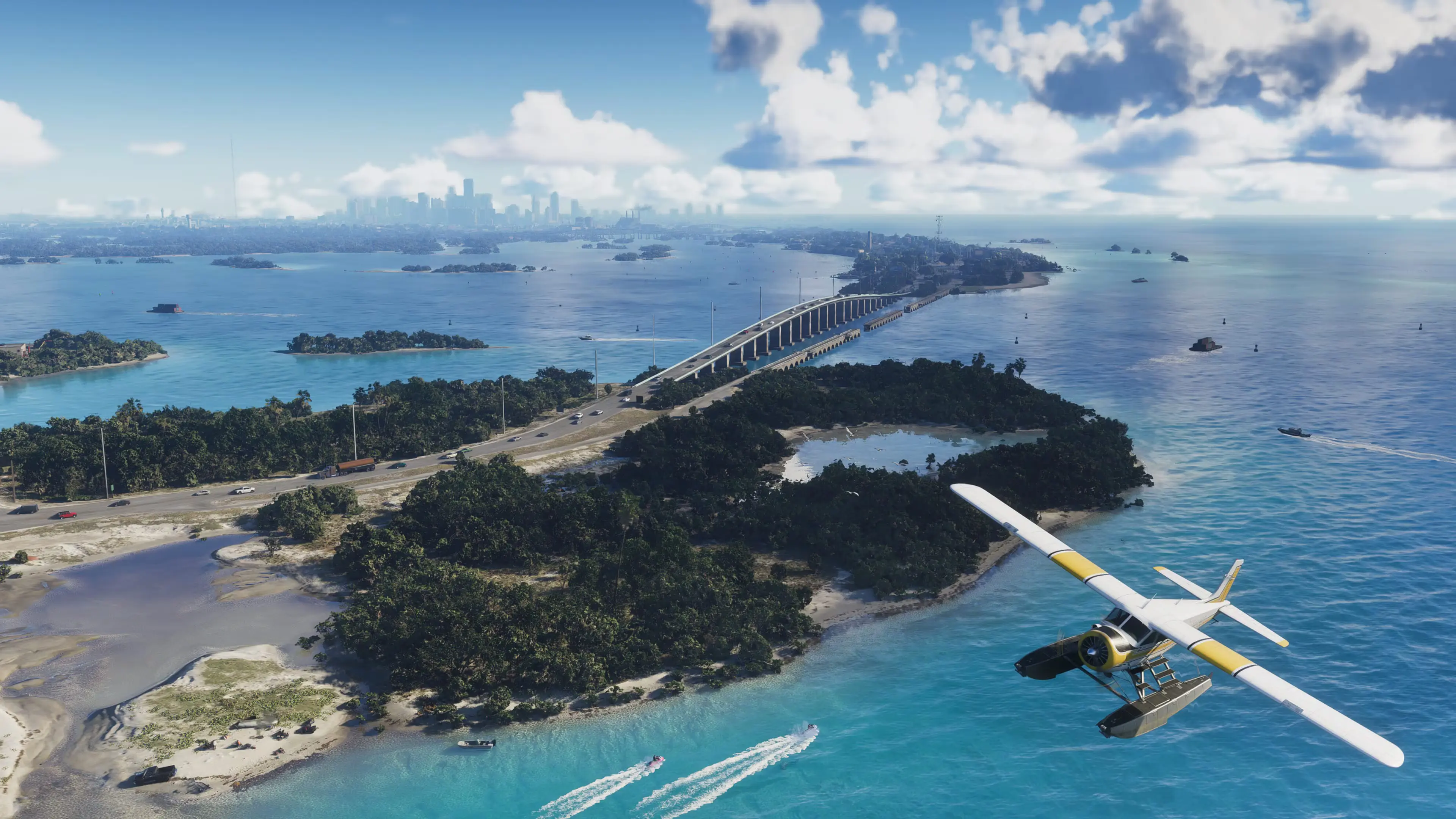
A readable interface is more useful than a perfectly clean screen when you are still learning Vice City and the wider state of Leonida. GTA 6's UI menu includes navigation, subtitles, reticles, combat feedback, prompts, and notification controls.
Dynamic vs always-visible minimap
Choose
Minimap Always On if you want to see streets and turns without calling up the map. Dynamic minimap modes look cleaner, but they may hide useful navigation information until the game thinks you need it.
Keep GPS Route and important objective markers enabled while learning the map. If you enjoy exploring without constant guidance, switch to a dynamic option later.
Best UI size, subtitles, and objective markers
For a television viewed from a sofa, start with Medium or Large UI text. Set Subtitles to
On, choose Medium subtitle size, and enable a background if white text disappears against bright scenery.
Turn Speaker Names on if you want to follow conversations between Jason, Lucia, and other characters more easily. Keep Objective and Help Text notifications enabled during your first playthrough, as hiding tutorials can make new mechanics harder to understand.
Best audio settings for dialogue and driving
Keep Dialogue volume high and lower Music slightly if voices are getting lost in busy scenes. Players sensitive to high-pitched effects can enable Tinnitus Reduction if that option is available in their Audio menu.
If you stream or record GTA 6, look for
Mute Licensed Music in Audio. This can reduce the chance of licensed tracks appearing in your recording, although it is not a guarantee against every possible copyright claim.
Best accessibility and comfort settings
High Contrast Shaders, subtitles,
Tap Assist, and
Hold Assist can make the game easier to navigate or control. Tap Assist can replace repeated button presses with fewer presses or a hold, while Hold Assist helps if keeping buttons held down is uncomfortable.
Simplified Mini Games reduces demanding input sequences in activities such as exercising, hotwiring and basketball. For comfort, start with readable subtitles, less camera shake and reduced bright flashes, then add accessibility settings based on what actually bothers you.
Best GTA 6 Settings for Story Mode
If your goal is to finish GTA 6's main story with fewer frustrating retries, choose settings that help you complete objectives rather than make every encounter harder. You can still enjoy the world and combat without using the most demanding aiming and camera options.
Recommended Story Mode setup
- Combat: Partial targeting, strong aim assist, Shooting Assist On, and Drive-By Assist On.
- Movement: Movement Speed on Jog (or Run), Combat Movement Speed on Fast Walk, and a predictable cover-selection option.
- Navigation: Minimap Always On, GPS Route On, and objective prompts enabled.
- Display: Calibrated brightness, reduced distracting effects, and a comfortable motion-blur level.
- Camera: Medium or High vehicle camera, with less shake and fewer cinematic interruptions.
- Readability: Subtitles On, Medium or Large text, and Speaker Names On.
- Extra assistance: Try Simplified Mini Games for troublesome inputs, plus Accessible Combat or Reduced Vehicle Damage if missions remain too difficult.
Accessible Combat lowers enemy health and the damage you take, while
Reduced Vehicle Damage makes vehicles harder to destroy. These settings noticeably reduce difficulty, but launch-day testing reports that
they do not disable PlayStation trophies. Unlike cheats, they are built-in gameplay options. Switch them on only if you want a more relaxed Story Mode experience.
GTA 6 STORY MODE
Want to Finish the Story Without the Extra Grind?
Better settings can help you beat difficult missions, but they cannot finish the campaign for you. Boosting Factory's GTA 6 Story Completion service lets an experienced player continue from your existing save and complete your selected main-story progression through manual gameplay, without cheats or unlock tools. Story completion is different from 100% completion and every trophy.
Explore GTA 6 Story Completion Boost ›
Frequently Asked Questions
Does GTA 6 have a 60 FPS mode?
No. Rockstar's launch console target is 30 FPS, including on PS5 Pro. The game does not offer a selectable 60 FPS Performance Mode in the documented launch menus.
What are the best GTA 6 settings for PS5 Pro?
Start with a low-latency TV mode, calibrated HDR, Partial targeting, comfortable controller sensitivity, and readable subtitles. The PS5 Pro offers clearer image presentation and additional ray-traced shadows, but it does not have a higher frame-rate mode.
Can you turn off motion blur in GTA 6?
The Display menu includes a Motion Blur Strength slider, so you can reduce the effect. Check the minimum available on your version rather than assuming it uses a simple On/Off toggle.
Does GTA 6 have aim assist?
Yes. The documented Gameplay menu includes Targeting choices and an Aim Assist Strength control, along with Shooting Assist and Drive-By Assist.
What is the best aim sensitivity for GTA 6?
The reported launch default is 7. Start there, test 7-8 for Aim Sensitivity, and try 8-9 for Look Sensitivity only if camera turns feel slow. Lower Aim Sensitivity if you overshoot targets rather than copying faster settings blindly.
How do you stop walking so slowly in GTA 6?
Go to
Settings > Gameplay > Movement > Movement Speed and select Jog or Run. The launch default is Walk, so changing it makes regular movement faster without repeatedly clicking the left stick to run.
Do Accessible Combat or Reduced Vehicle Damage disable GTA 6 trophies?
No. Launch-day tests report that these built-in gameplay assistance options do not block PlayStation trophies. They make combat or driving more forgiving, but they are not cheat codes. You can turn them off again in the Gameplay menu.
Can you change settings after starting GTA 6 Story Mode?
Yes. Open the pause menu and select Settings to change your controls, display, UI, camera, and audio preferences. You do not need to start the story over to adjust them.
Are GTA 6 settings different on PS5 and Xbox?
The main settings groups are similar, but button names, DualSense-specific features, and observed slider defaults can differ. Use the values shown in your platform's own menu, particularly for stick deadzones and controller features.
Is GTA 6 available on PC?
The announced launch platforms are PS5 and Xbox Series X|S. There is no confirmed PC launch version to optimize here, so ignore guides that advertise verified GTA 6 PC graphics presets at this stage.
Final Verdict: Best GTA 6 Settings for Most Players
For an easier first playthrough, prioritize
Movement Speed on Jog, Partial targeting, strong aim assistance, a readable minimap, comfortable visual effects and your TV's low-latency mode. If missions are difficult, Simplified Mini Games and Accessible Combat can help without relying on cheats.
If a camera or aiming change makes the game feel worse, restore the previous value and test one option at a time. GTA 6 is built around exploration and Story Mode, so the best settings are the ones that help you stay in control and enjoy Leonida.